
The Epson L4261 is a good choice for anyone looking for a bulk-in printer with a flatbed scanner for occasional scanning tasks. The fact that it can be configured over a wireless network is a significant benefit.
The compact unit lacks several useful features that office customers want, but its paper capacity, print speed and cost, automatic duplex, and wireless compatibility suggest that the printer is best suited for home office users on a tight budget.
Epson L4261 Resetter Adjustment Program Free Download

Compact size
Most people who work in tiny spaces would prefer a compact printer as long as its performance and features met their requirements. If you’re ready to spend some time comparing the Epson L4261 to other inkjet printers, you’ll probably struggle to discover one that’s more compact than the printer.
100-sheet input tray
When printing, scanning, or copying, the Epson L4261 appears to be slightly less compact. When the paper input tray is extended, it can hold up to 100 pages. This amount should be sufficient for home office use. If your printing requirements change as your business grows, you may need to purchase a new printer with a bigger paper capacity because the Epson L4261 does not offer an upgrade option.
Plenty of ink
The L4261 has a larger ink capacity than conventional cartridge printers since it uses bulk ink. Even if you print one hundred pages per month, the printer will survive more than two years without a refill. Furthermore, the ink technology used can provide printouts at a lower cost per page, making it even more appealing.
However, the cost savings in printing are offset by a larger initial investment. The use of the ink system has a considerable impact on the printer’s design, as evidenced by the projecting component at the front.
Download Epson L4261 Resetter
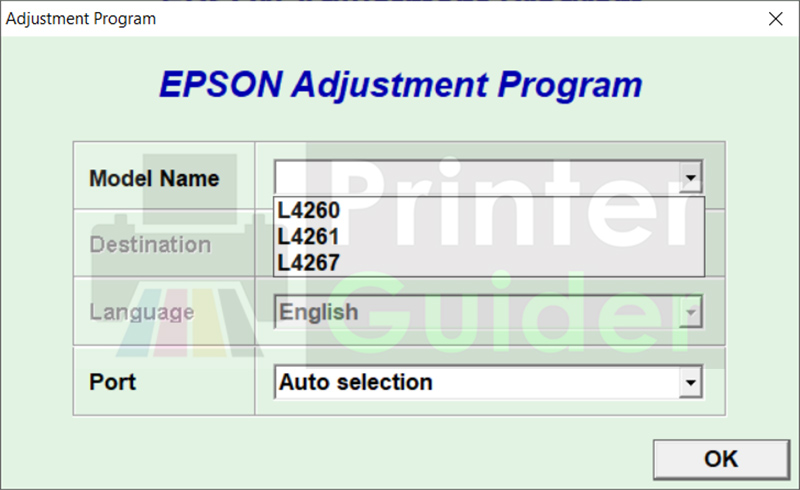
The Epson L4261 employs ink for its self-cleaning functions. After cleaning, the ink is isolated using porous pads. When they fail to function, the printer activates its automatic lock. Consequently, users will be unable to print.
The pads have a counter assigned to keep track of them. It has a predetermined set of numbers at which the pads are declared nonfunctional, causing the printer to issue a warning, but the warning contains nothing that users can use to complete current print jobs, which is why you need the Epson L4261 Resetter to restart the printer.
It can be a frustrating experience for a person to discover that their printer has stopped operating, not because it is broken, but because Epson has determined that it is prudent to restrict printer owners ‘ opportunity to continue using their hardware after some pads are no longer considered usable. Using a third-party tool is the only option to solve the problem. Click the link below to download the Epson L4261 Resetter for Windows.
Download Details:
- Supported OS: Windows XP, 7, 8, 10, 11
- Version: Epson L4261
- File Size: 3.93MB
- Rating: 4.5/5
How to use the Epson Resetter?
1. Download Epson Resetter.
2. Disable antivirus temporarily (if flagged).
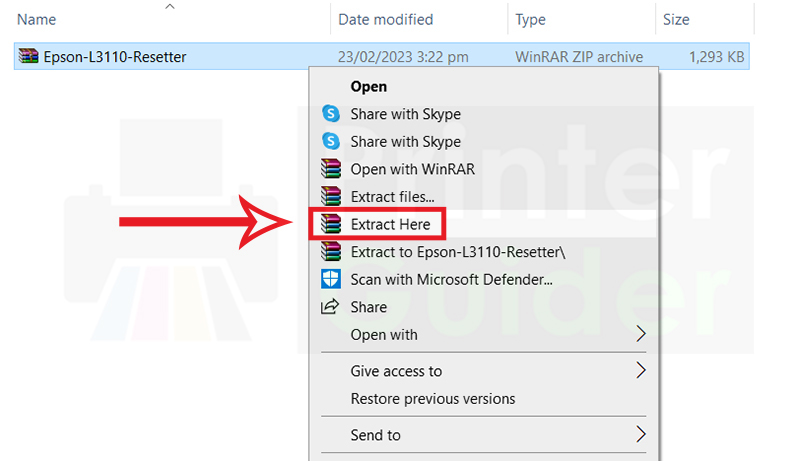
3. Extract the Epson Resetter Software using WinRAR.
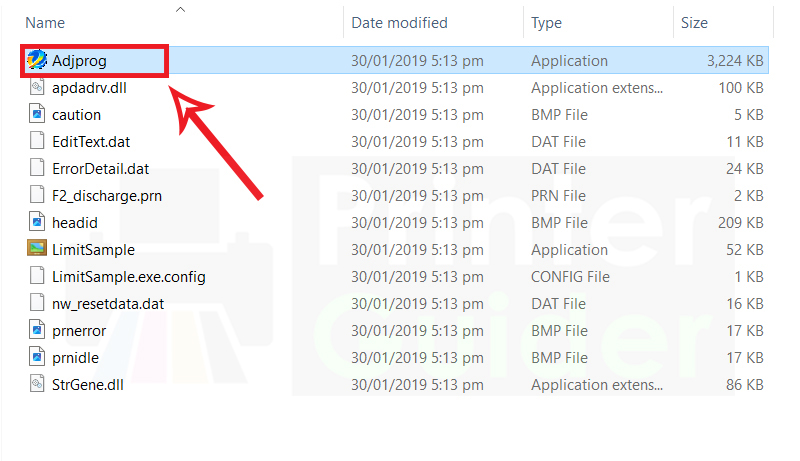
4. Open Adjprog
5. Click on the Select Button
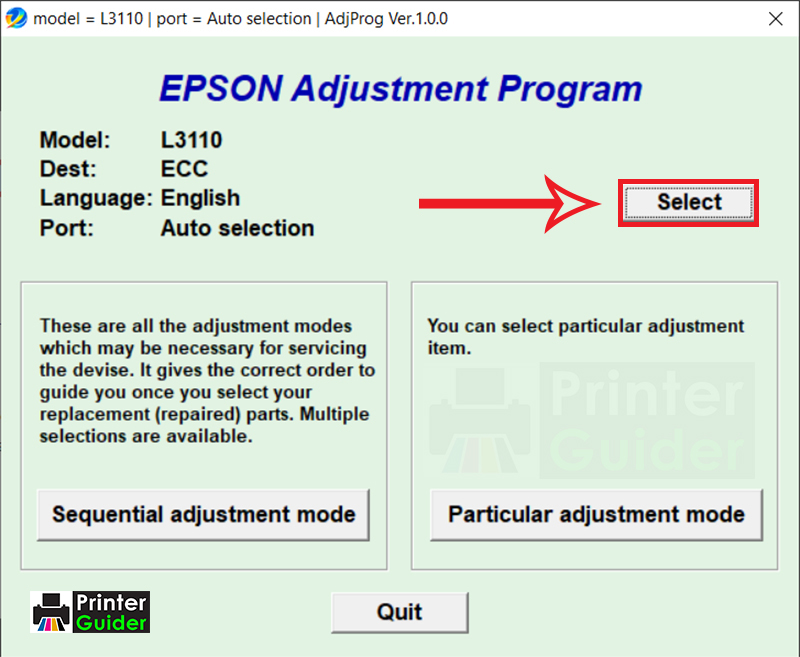
6. Choose Printer Model
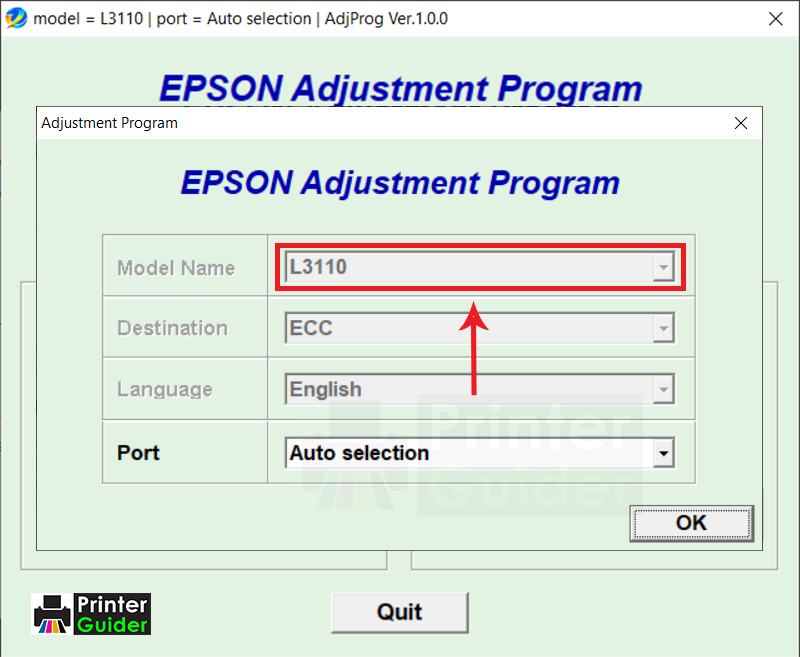
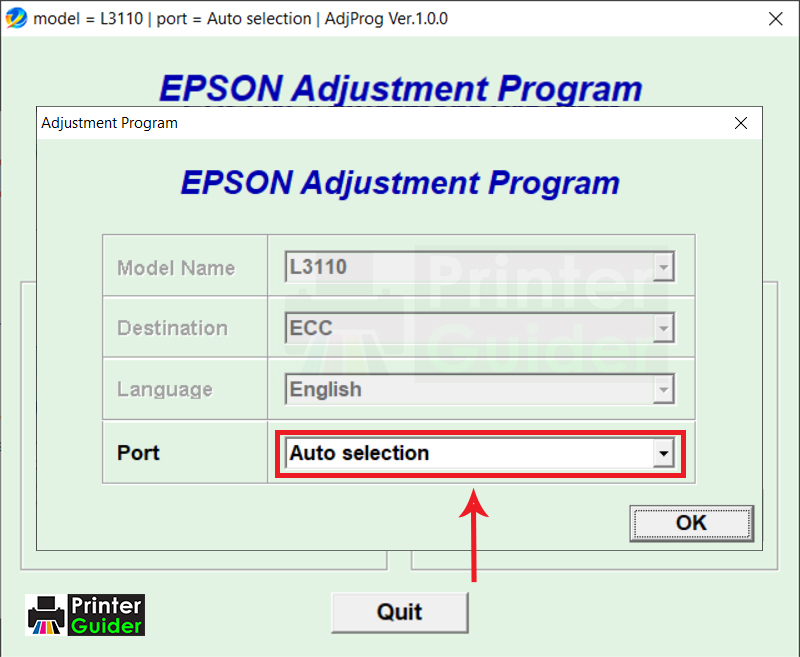
7. Choose Port, then click on the OK button.
8. Open a Particular adjustment mode
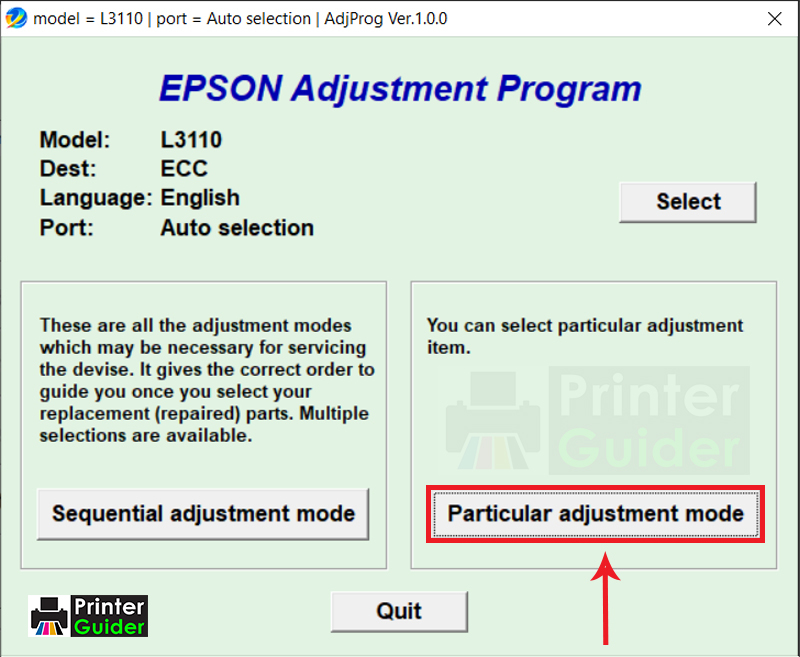
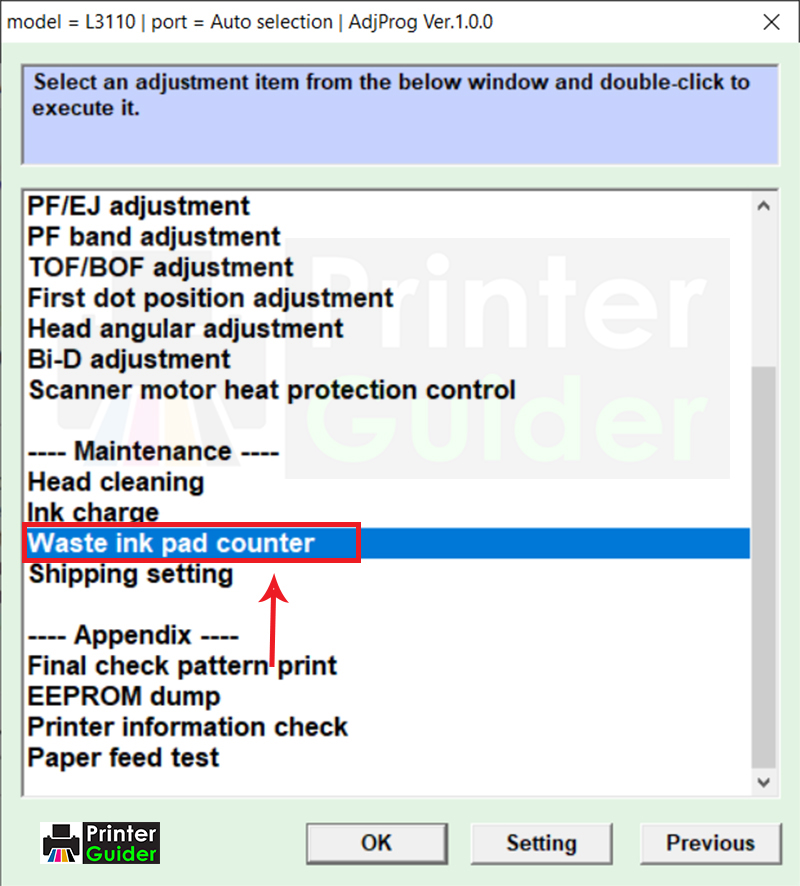
9. Select Waste Ink Pad counter
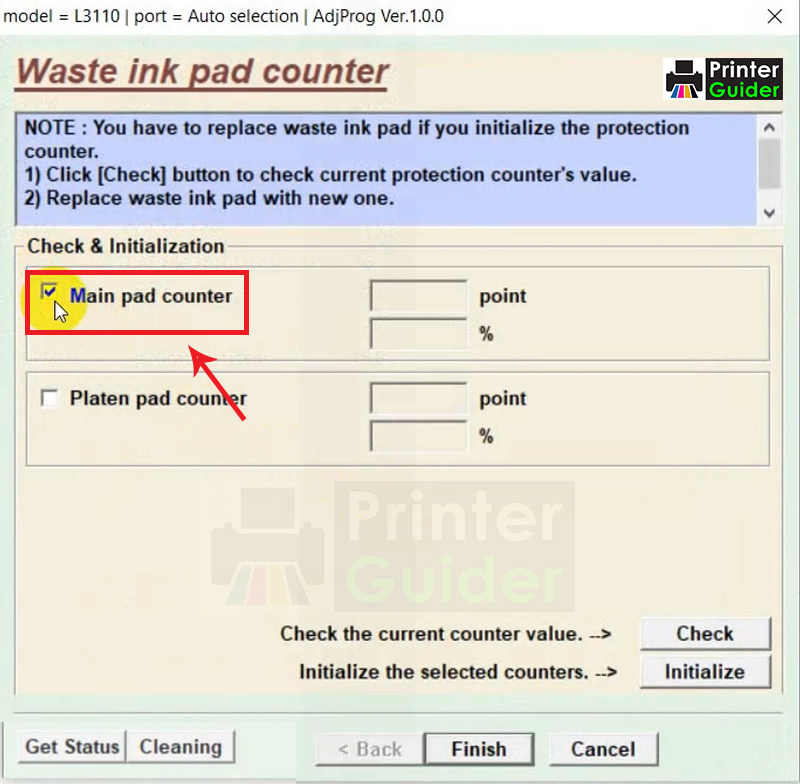
10. Select Main Pad Counter
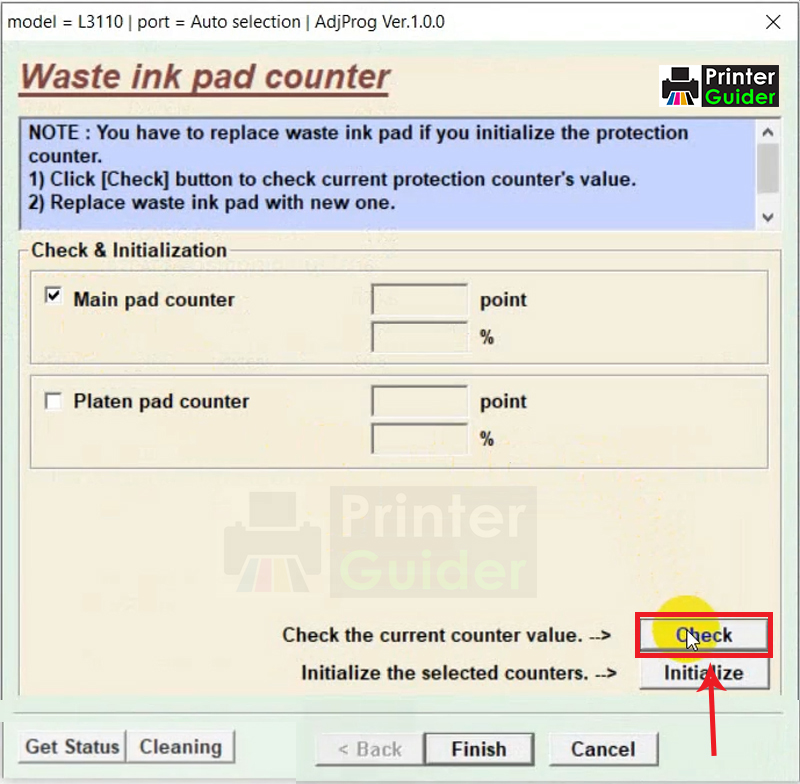
11. Click on the Check Button
12. Select the Main Pad Counter Again
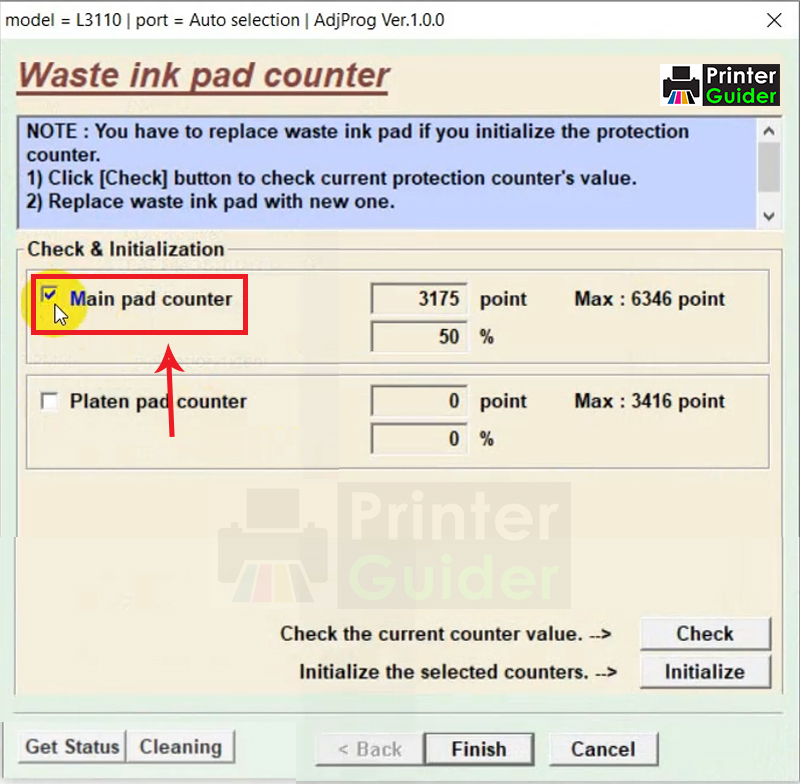
13. Click on the Initialise Button
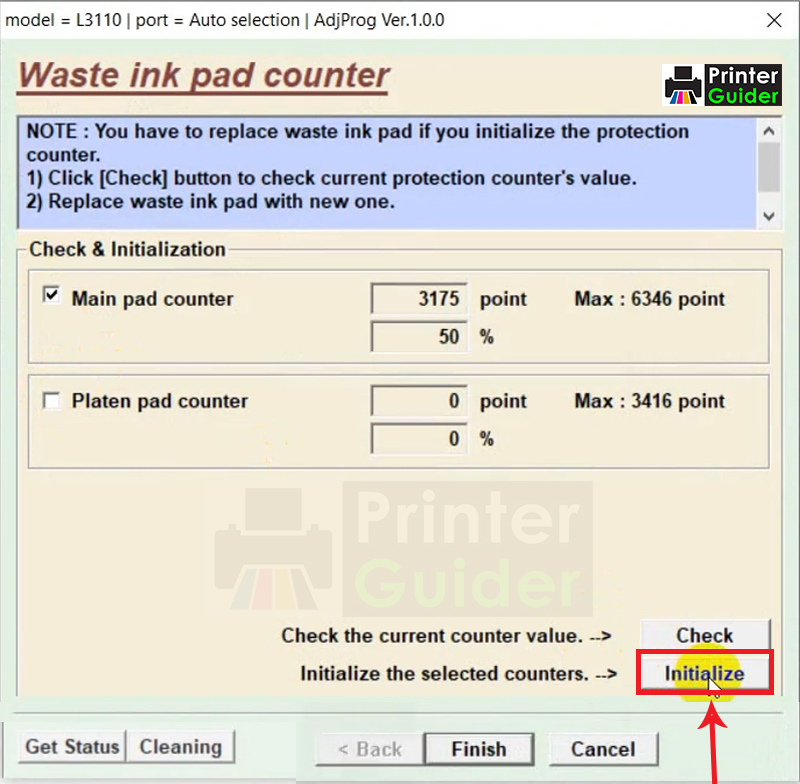
14. Click on the OK Button
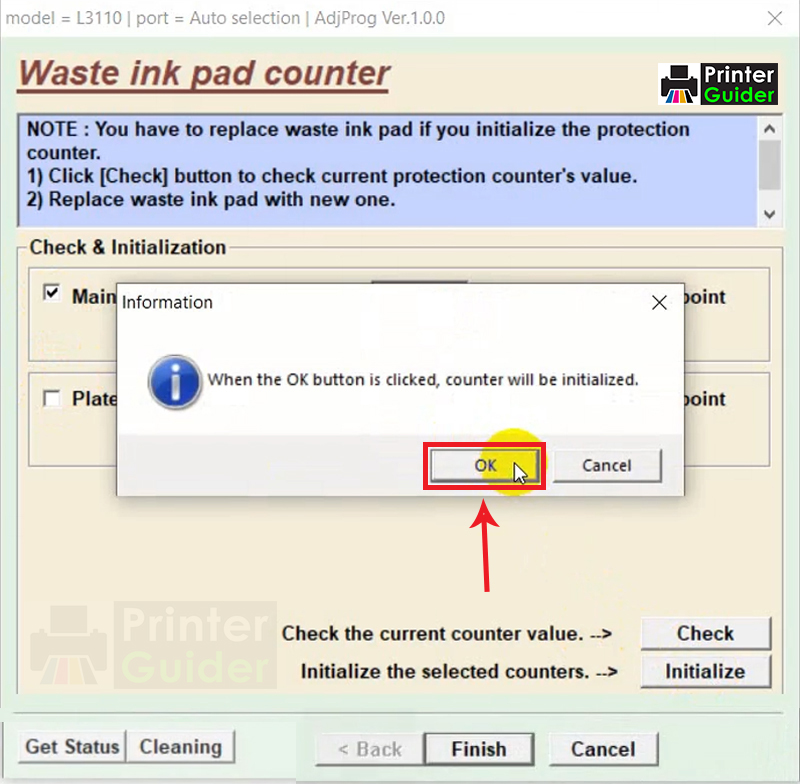
15. Initialising Now

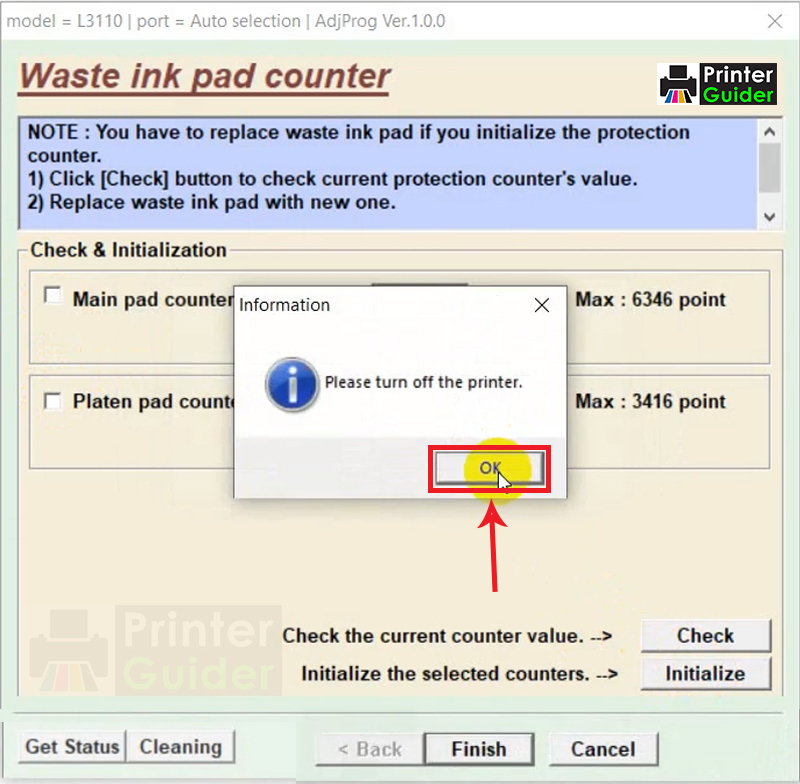
16. Turn off the printer, then click on the OK Button
17. Click on the Finish Button
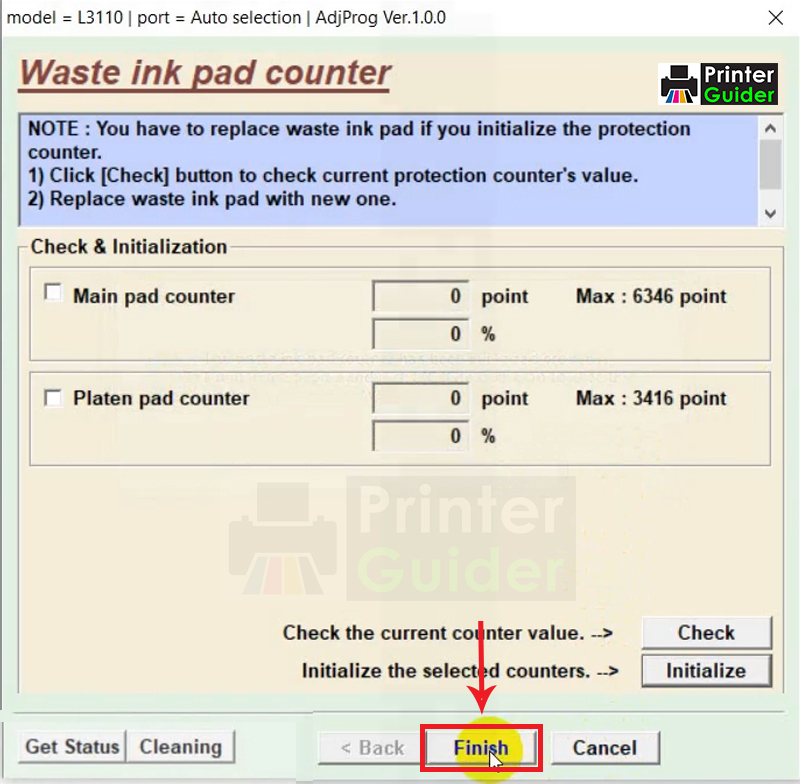
18. Now, Close the Program. Done. Enjoy!